Hindi voice typing: how to turn speech into text for free
Tired of typing long messages, notes or letters? Record your voice, or pick a WhatsApp voice note, and let the AI write it down. Everything runs on your own device, so private audio stays private.
Short answer
Open Voice Note to Text, press “Record with mic” and speak (or press “Choose a file” for a voice note). Choose the language you spoke, pick the “Small” model for Hindi in Hindi letters, and press “Convert to text”. Read the text, correct the wrong words, then copy it or download “Text (.txt)”. English comes out very accurate; Hindi is decent with “Small” and needs a quick check.
Speech to text in 5 steps
-
Record your voice or add a file
Open Voice Note to Text. Press “Record with mic”, speak clearly and press “Stop and use”. Or press “Choose a file” and pick a WhatsApp voice note, a recording or a video (up to 30 minutes).
-
Choose the spoken language
Under “Language spoken in the audio”, choose Hindi, English or another language. Automatic detection also works, but choosing it yourself is more reliable.
-
Pick the AI model
“Tiny” and “Base” are fast and good for clear English. For Hindi in Hindi letters, choose “Small”: it is the most accurate, but it is a big download and slow, so a laptop or computer is better than a phone.
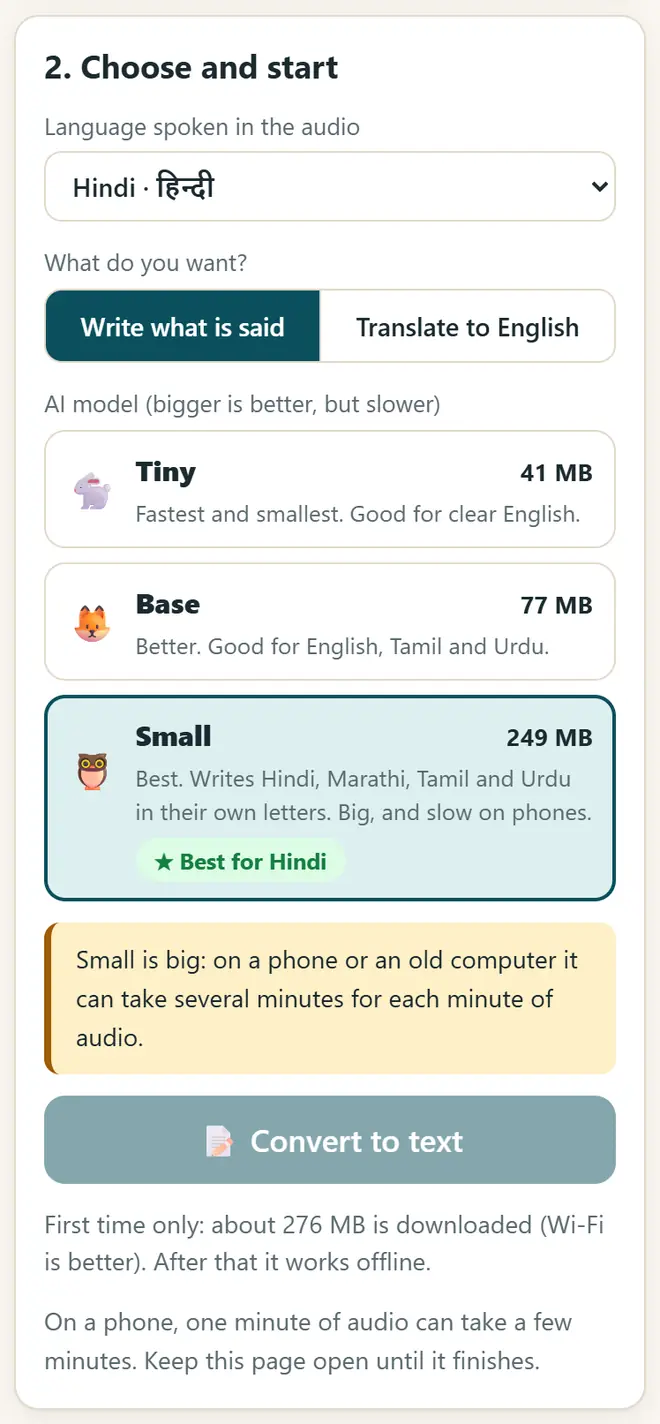
Choose the spoken language and the AI model. -
Convert to text
Press “Convert to text” and keep the page open. The first time, the AI model is downloaded once (Wi-Fi is better). The text appears part by part.
-
Correct it and use it
Tap a time to listen to that part again, and tap the text to fix a word. Then copy the text, or download “Text (.txt)”, or “Subtitles (.srt)” for a video.
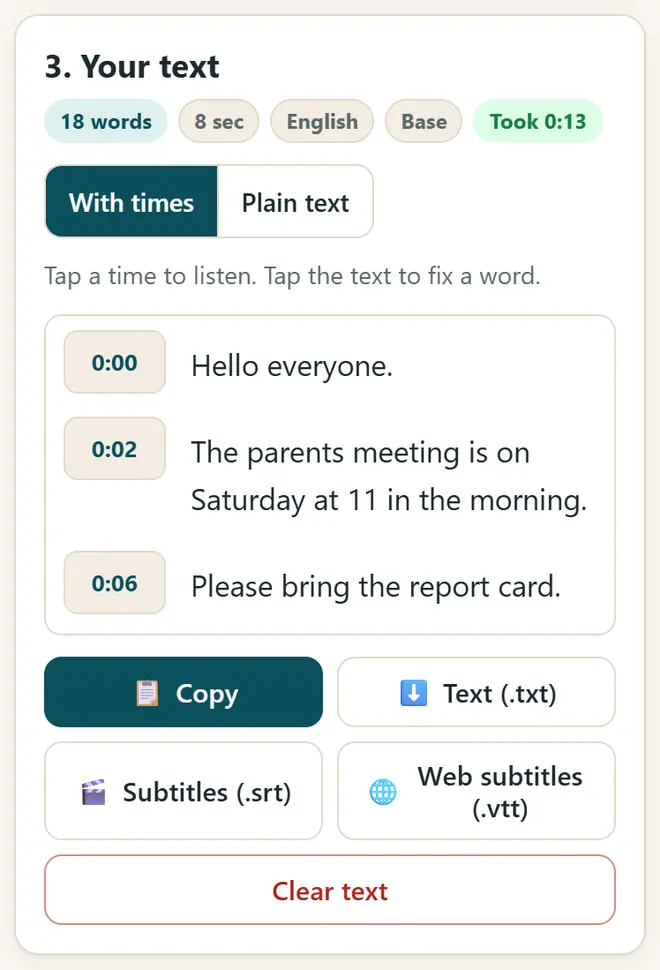
The text appears with times. Tap a word to correct it.
How accurate is it? An honest note
- English: very good with every model, even on a phone.
- Hindi: decent with “Small”. Expect some wrong words, especially names, numbers and mixed Hindi-English, so read the text once before you send it.
- On a phone, “Small” can be too heavy and may stop with an error. “Base” works there, but writes Hindi with rough spelling.
- This is not live typing: you speak first and the text comes afterwards. Speak clearly, one person at a time, with little background noise. Odia is not available yet.
Get new free tools and Hindi AI lessons
Join our email list to hear about new free apps, new guides and Hindi video lessons on AI. No spam.
For adults (18+). You can unsubscribe at any time.
Why we recommend these tools
- Free for everyone: no ads, no sign-up and no paid plan.
- Private: your files and details stay on your own device.
- Works on a phone, laptop or smartboard, and offline once opened.
- Available in 12 languages, including Hindi.
Prefer video? Watch free Hindi lessons on AI and free tools on our YouTube channel.
Frequently asked questions
Can it write in Hindi letters when I speak Hindi?
Yes, with the “Small” model. The smaller models are less reliable for Hindi: “Base” gives rough spelling. For English, every model writes well.
Is my voice uploaded anywhere?
No. Only the AI model is downloaded to your device, once. Your recordings and voice notes are never uploaded, so it is safe for private messages and meetings.
How do I turn a WhatsApp voice note into text?
Long-press the voice note in WhatsApp, tap Share and save it to your phone. Then pick it here with “Choose a file” and press “Convert to text”.
Which other languages work?
With “Small”, Hindi, Marathi, Tamil and Urdu are written in their own letters. Other Indian languages come out in English letters; for them “Translate to English” is often more useful. Odia is not available yet.
How long does it take?
It depends on your device and the model. On a phone, one minute of audio can take a few minutes. The first run also downloads the model once: from about 70 MB (“Tiny”) to about 280 MB (“Small”).
Found this useful?
Send it to a friend, your colleagues or your school's WhatsApp group.