Question paper format for teachers: make a question paper online for free
Typing a test paper in a word processor takes time: the numbering, the marks at the side, the options in neat rows. This free app keeps the format for you. You type the questions in any language, and it numbers them, adds up the marks and makes an answer key.
Short answer
Open Question Paper Maker and press “Start a blank paper”. Fill in the school, exam, class, subject, time and maximum marks. Add sections, set “Marks per question” for each one and add the questions. When “Total marks” matches the maximum marks, press “Print or save as PDF”.
A question paper in 5 steps
-
Fill in the paper heading
Open Question Paper Maker. It opens with a sample paper, so that you can see the format. Press “Start a blank paper” to clear it. Type the school name, exam name, class, subject, time allowed, maximum marks and date. You can also add lines for the student's name and roll number.
-
Write the general instructions
Write one instruction on each line, such as “All questions are compulsory”. If you do not want instructions on the paper, untick that box.
-
Add sections and set the marks
Press “Add a section” for each part of the paper. Give the section a heading if you like, and fill in “Marks per question”: every question in that section carries those marks.
-
Add the questions
In each section, add questions with the buttons “MCQ”, “Fill in the blank”, “True or false”, “Short answer”, “Long answer” and “Match the following”. Mark the correct option or type the answer for the answer key. You can add an OR question, move a question up or down, or make a copy of it.
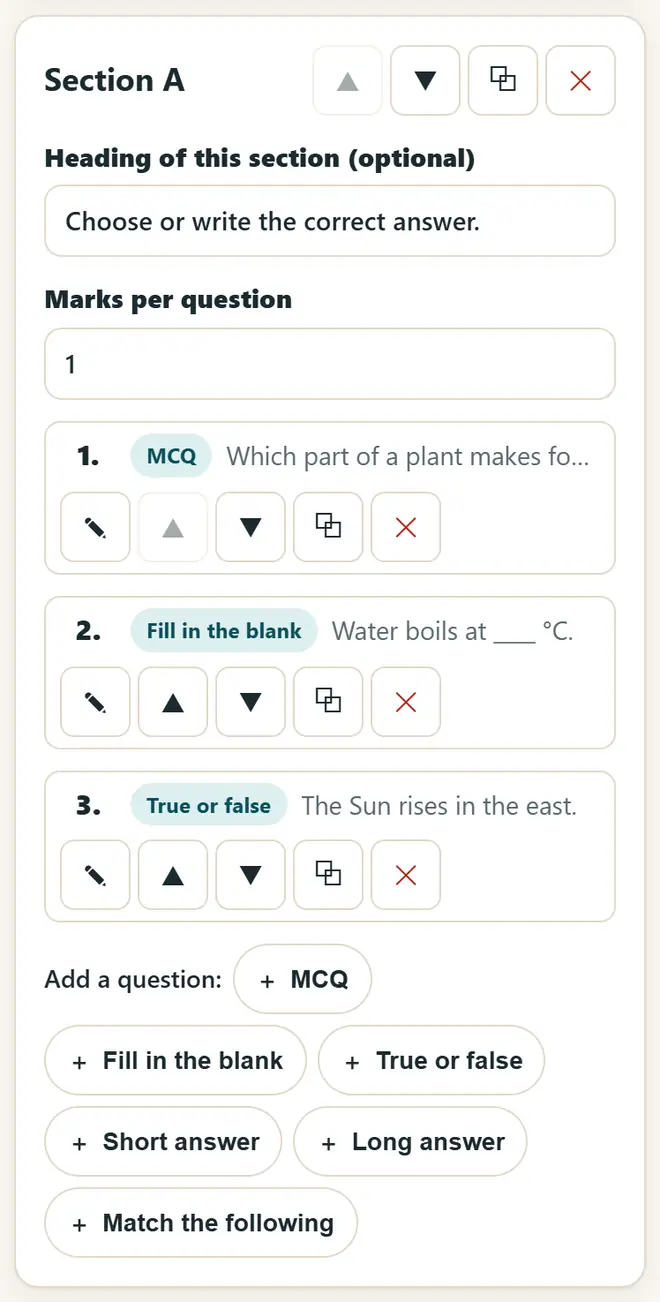
Add sections and questions. The marks are added up for you. -
Check the total and print
The app numbers the questions and adds up the marks. “Total marks” shows whether the paper matches the maximum marks. Press “Print or save as PDF” and choose A4 paper, or Save as PDF. Open “Answer key” and press “Print the answer key” for your own copy of the answers.
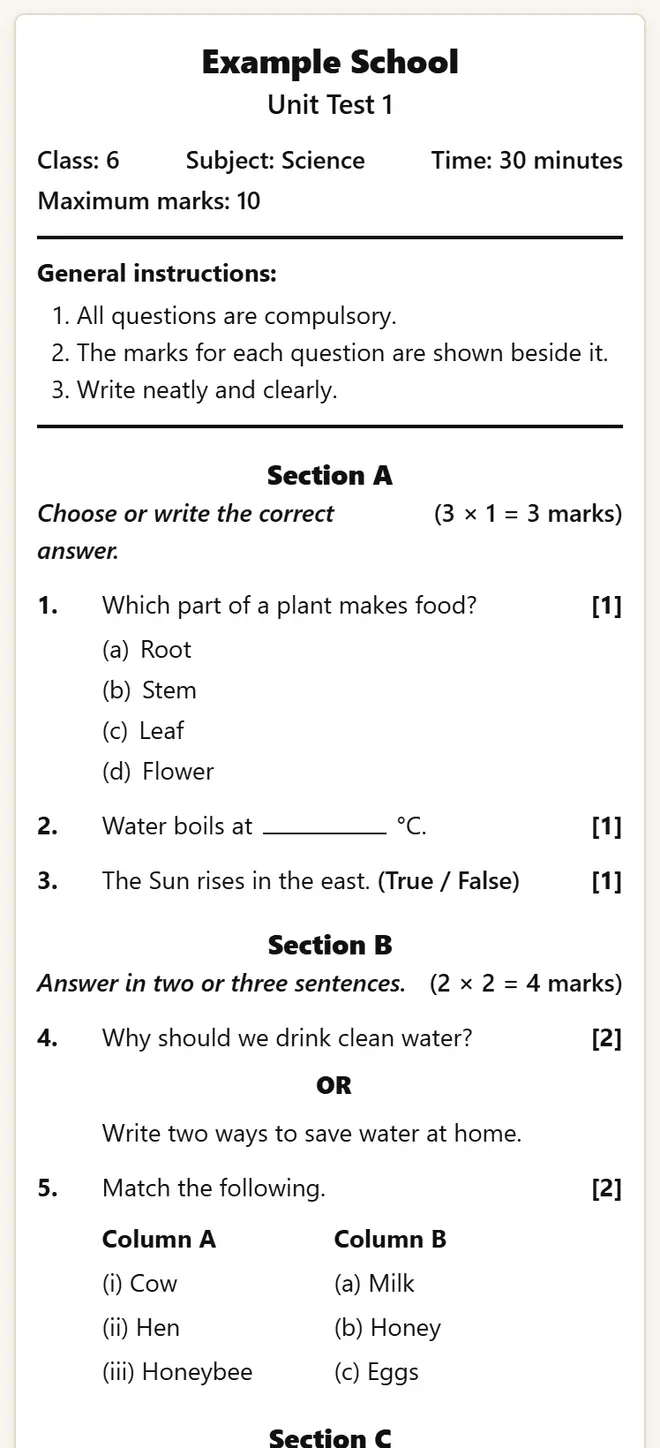
The question paper, ready to print on A4.
Tips for a good question paper
- Go from easy to hard: objective questions first (MCQ, fill in the blank, true or false), then short answers, then long answers.
- For match the following, type each correct pair on one line. The paper mixes up the second column by itself, and the answer key keeps the right pairs.
- You can type the questions in any language. “Language of labels on the paper” prints words like Time, Maximum marks and Section in the language of your paper.
- Press “Save paper as a file” to keep the paper as a file. Next term, press “Open a saved paper”, change a few questions and print again. You can also send the file to another teacher.
Get new free tools and Hindi AI lessons
Join our email list to hear about new free apps, new guides and Hindi video lessons on AI. No spam.
For adults (18+). You can unsubscribe at any time.
Why we recommend these tools
- Free for everyone: no ads, no sign-up and no paid plan.
- Private: your files and details stay on your own device.
- Works on a phone, laptop or smartboard, and offline once opened.
- Available in 12 languages, including Hindi.
Prefer video? Watch free Hindi lessons on AI and free tools on our YouTube channel.
Frequently asked questions
What is the format of a question paper?
At the top: the school name, exam name, class, subject, time allowed and maximum marks. Then the general instructions, and after that the questions in sections, with the marks shown. Your school or board may have its own pattern, so follow it for the number of sections and the marks.
Can I make a question paper in Hindi or another language?
Yes. Type the questions in any language that your phone or computer can type. Choose the same language under “Language of labels on the paper” so that the labels on the paper match.
Does it make an answer key?
Yes. The answer key is made from the correct options you mark and the answers you type. Open “Answer key” to see it and press “Print the answer key” to print it on its own.
Can I save the question paper as a PDF or a Word file?
PDF: yes. Press “Print or save as PDF” and choose Save as PDF. The app does not make a Word file. “Save paper as a file” saves a file that opens again in this app, so that you can change the paper later.
Is it free? Do my questions leave my device?
It is free, with no sign-up and no watermark. The paper is made in your browser and nothing is uploaded, so the questions stay with you.
Found this useful?
Send it to a friend, your colleagues or your school's WhatsApp group.