How to blur faces in a photo before you share it
A class photo, an office event, a customer in your shop: before a photo goes to a group or to social media, hide the people who have not agreed to be in it. It takes a minute, and the photo never leaves your phone.
Short answer
Open Face Blur for Safe Sharing and press “Choose photo”. The AI finds the faces and hides them. Tap a box to show a face again, use “Draw a box” for number plates and name badges, choose how to hide (“Black box” and “Emoji” hide best) and press “Save as JPG”. The saved photo has no GPS location inside.
Hide faces in 5 steps
-
Choose a photo
Open Face Blur for Safe Sharing and press “Choose photo”, or “Try a sample photo” to see how it works. The first time, the face-finding AI is downloaded once (Wi-Fi is better).
-
Check every face
The faces that were found are hidden automatically. Tap a box to show a face again, for example someone who agreed, and tap once more to hide it. If small faces at the back were missed, press “Look harder for small faces”.
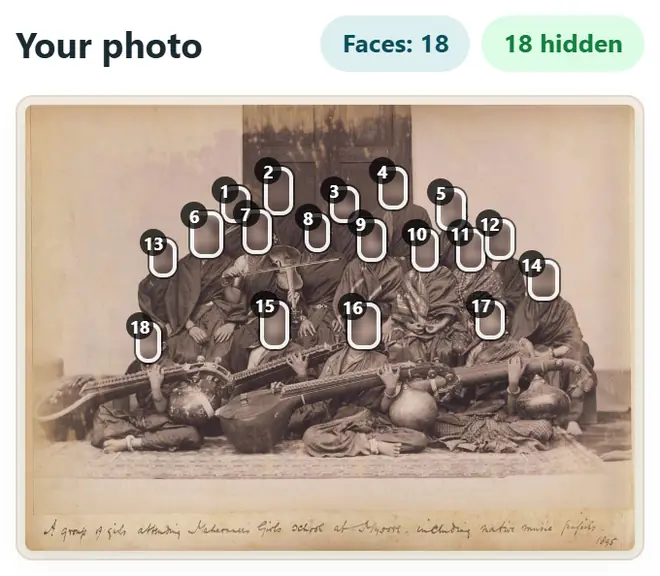
Faces are found and hidden. Tap a box to show or hide a face. -
Cover other private details
Press “Draw a box” and drag over number plates, house numbers, name badges, ID cards and screens.
-
Choose how to hide
Choose “Blur”, “Pixels”, “Black box” or “Emoji” and set the strength. A black box or an emoji hides best; a light blur can sometimes still be recognised.
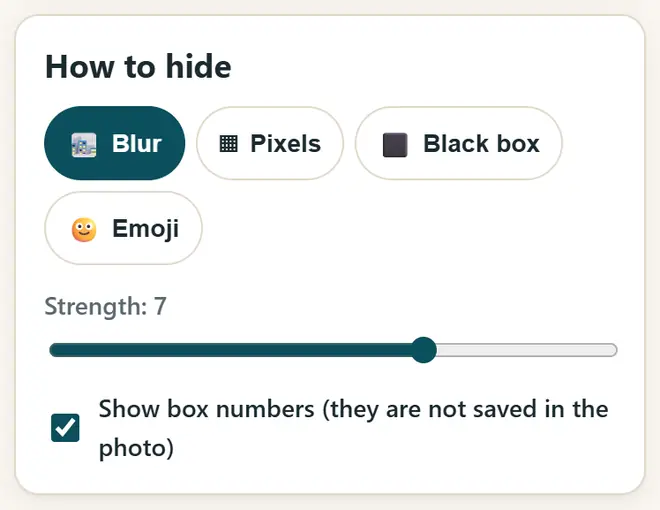
Choose how to hide: blur, pixels, a black box or an emoji. -
Check the location and save
“Location check” tells you whether the original file has a GPS location inside. Press “Save as JPG” or “Save as PNG”: the saved photo is drawn fresh, so the location and camera details are not in it. Zoom in and check once more before you share.
Before you share: good to know
- The AI finds most faces that look towards the camera. It can miss faces that are turned away, covered or very small, so always check and add boxes by hand.
- Ask first. Under India's Digital Personal Data Protection Act, 2023, a photo that shows who a person is counts as their personal data. For children, ask the parents.
- A uniform, a school name, a signboard or a house number can also tell a stranger where a child studies or lives. Cover those too.
- Share the saved copy, not the original file. To remove the whole background of a photo, use AI Background Remover.
Get new free tools and Hindi AI lessons
Join our email list to hear about new free apps, new guides and Hindi video lessons on AI. No spam.
For adults (18+). You can unsubscribe at any time.
Why we recommend these tools
- Free for everyone: no ads, no sign-up and no paid plan.
- Private: your files and details stay on your own device.
- Works on a phone, laptop or smartboard, and offline once opened.
- Available in 12 languages, including Hindi.
Prefer video? Watch free Hindi lessons on AI and free tools on our YouTube channel.
Frequently asked questions
Is my photo uploaded?
No. Only the face-finding AI is downloaded to your device, once. The photo itself never leaves your phone or computer.
Can someone remove the blur later?
The saved photo is a new picture: the original is not hidden inside it. A black box or an emoji cannot be undone. A light blur can sometimes still be recognised, so keep the strength high.
Does it remove the location from the photo?
Yes. The photo you save here has no GPS location, camera details or other hidden data. The app also shows whether your original file had a location.
Can I hide a number plate or a name?
Yes, by hand: press “Draw a box” and drag over it. The AI finds only faces.
Does it work for group photos?
Yes. It looks for small faces too, and “Look harder for small faces” searches again. In a big group, check the back rows yourself.
Found this useful?
Send it to a friend, your colleagues or your school's WhatsApp group.