Student ID card maker: make ID cards for free and print them on A4
A small school, a coaching class or an event does not need design software to make ID cards. This free app makes the card from the details you type, and the children's photos never leave your device.
Short answer
Open ID Card Maker, choose “Student” and type the school name and the student's details. Press “Choose photo” to add a photo. For a whole class, choose “Many cards (list)” and paste a list. Then press “Print on A4”: each card is 54 × 86 mm, and one A4 sheet holds 9 upright or 10 sideways cards.
Student ID cards in 5 steps
-
Choose the card type and add the school
Open ID Card Maker. It opens with sample data. Choose “Student” (there are also “Staff” and “Visitor”). Type the name of the school, its address, a contact number and the date the card is valid till. Press “Choose logo” if you have a logo.
-
Add the student's details and photo
With “One card” chosen, type the name, class and section and ID number, and choose the blood group if you want it on the card. Press “Choose photo”, pick a clear face photo and move the sliders until the face sits in the middle of the frame.
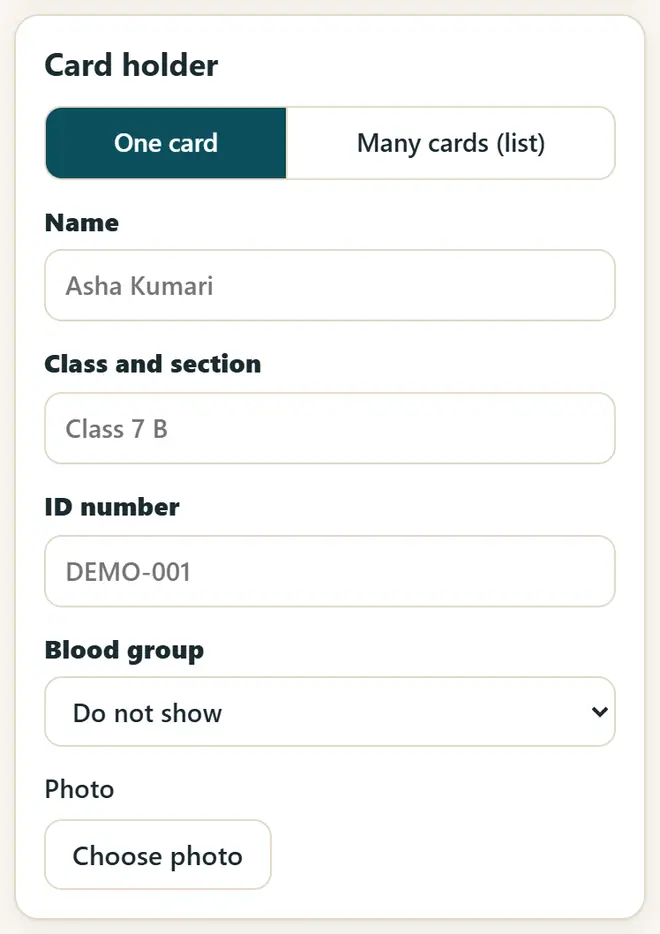
Type the student's details and add a photo. -
Make cards for a whole class
Choose “Many cards (list)” and type or paste one student on each line: name, class, ID number, blood group, valid till, contact, address. Only the name is a must, and you can paste from Excel. “Download sample CSV” shows the layout. Name the photo files by ID number or by name and add them together with “Add photos”.
-
Choose the design
Pick “Upright” or “Sideways” and a colour. Tick “Add a QR code of the ID number” if you want a QR code that holds the ID number.
-
Print on A4 or download
Press “Print on A4”. In the print window choose A4 paper and 100% scale, then cut along the small marks. “Download PNG” saves the card as a picture.
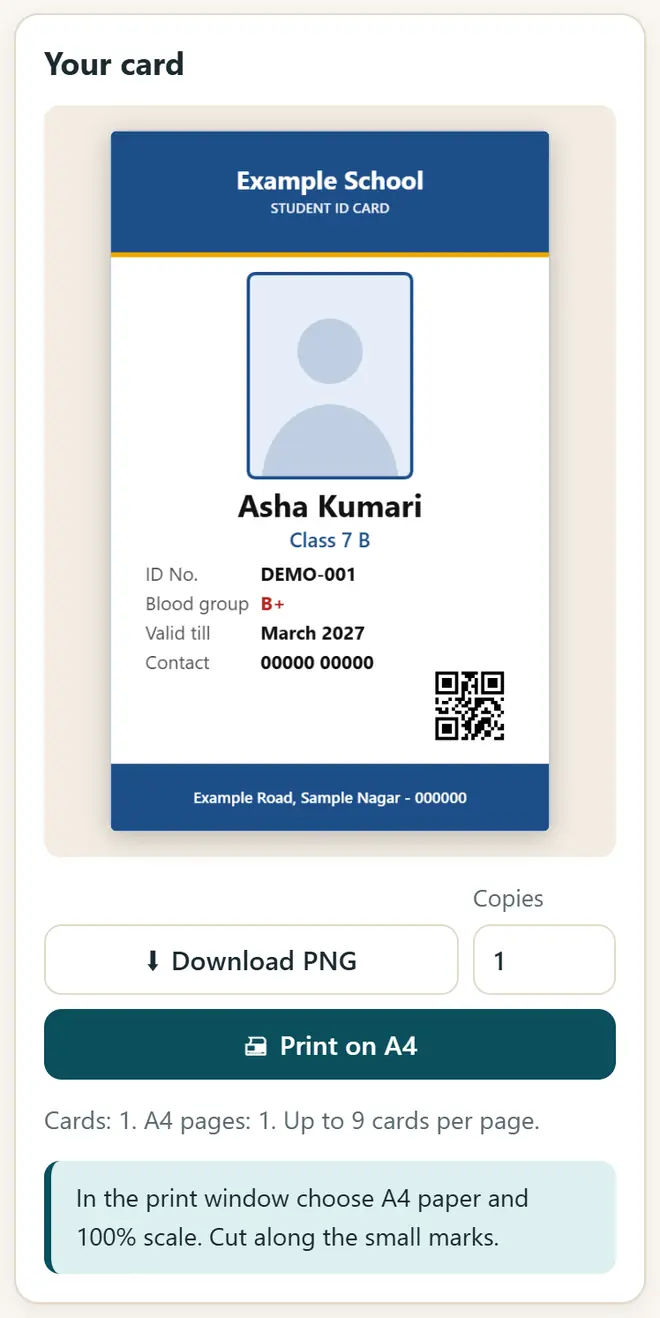
The finished student ID card with a QR code.
Tips for printing ID cards
- Print on thick A4 paper. Then laminate the cards or put them in card holders.
- No photo yet? The card gets an empty frame of about 20 × 25 mm, where you can paste a stamp-size photo.
- One list can have up to 300 cards. For a bigger school, make one list for each class.
- Check the spellings, ID numbers and contact number on the screen before you print the whole sheet. The app tells you if an ID number is repeated.
Get new free tools and Hindi AI lessons
Join our email list to hear about new free apps, new guides and Hindi video lessons on AI. No spam.
For adults (18+). You can unsubscribe at any time.
Why we recommend these tools
- Free for everyone: no ads, no sign-up and no paid plan.
- Private: your files and details stay on your own device.
- Works on a phone, laptop or smartboard, and offline once opened.
- Available in 12 languages, including Hindi.
Prefer video? Watch free Hindi lessons on AI and free tools on our YouTube channel.
Frequently asked questions
What is the size of the ID card?
Each card is 54 × 86 mm, about the size of a bank card, so it fits common card holders. Print at 100% scale to keep this size.
How many ID cards fit on one A4 page?
9 upright cards or 10 sideways cards. The app shows how many pages your list needs.
Can I make ID cards for all students at once?
Yes. Choose “Many cards (list)” and paste the list, or open a CSV file with “Open CSV file”. Add all the photos together: they are matched by ID number or by name.
Are the students' photos uploaded?
No. The photos and details stay on your device and nothing is uploaded. The cards are drawn in your own browser.
Is this an official ID?
It is the identity card of your own school, class, office or event. It is not a government ID, and only the school or the organiser should make it.
Found this useful?
Send it to a friend, your colleagues or your school's WhatsApp group.